1. Export an Audition marker file from Notetracks Pro
To export markers and comments from Notetracks Pro, click the Download button in your active session and select "NoteTracks.com > Audition Markers (.csv)".
2. Use the "Marķējuma pārveidotājs" to convert the Audition marker file into a CSV file
Open the free Marķējuma pārveidotājs, select "Audition" and set "convert" to "CSV for Google Sheets". Generate and download the file. Ja jums ir problēmas ar faila konvertēšanu, varat sazināties ar bezmaksas atbalsta dienestu.
3. Import the CSV file into Google Sheets
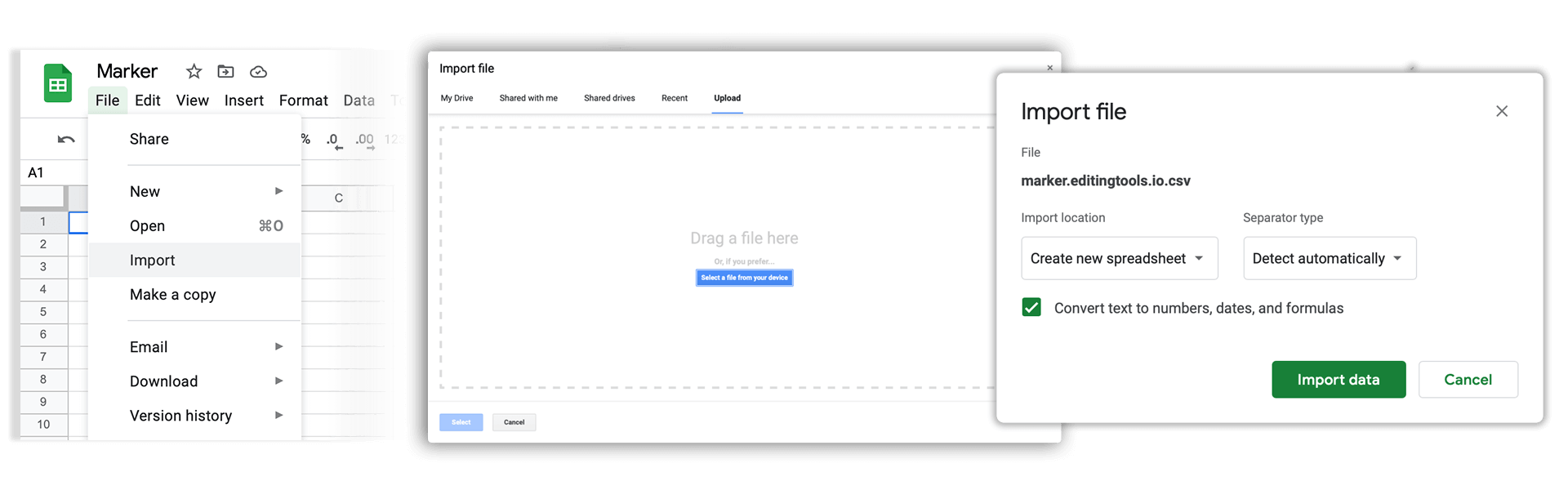
Open Google Sheets and go to "File -> Import". Upload the generated CSV file and press "Import Data" to generate the Sheet with all markers.
🚀 Gatavs
Pagaidām tas arī viss! Ja šī pamācība jums noderēja, lūdzu, dalieties ar to, lai mūs atbalstītu. Ja jums ir ieteikumi, kā mēs varētu uzlabot darbplūsmu, lūdzu, dariet mums zināmu!