1. Export a CSV file from Live Timecode Notes app
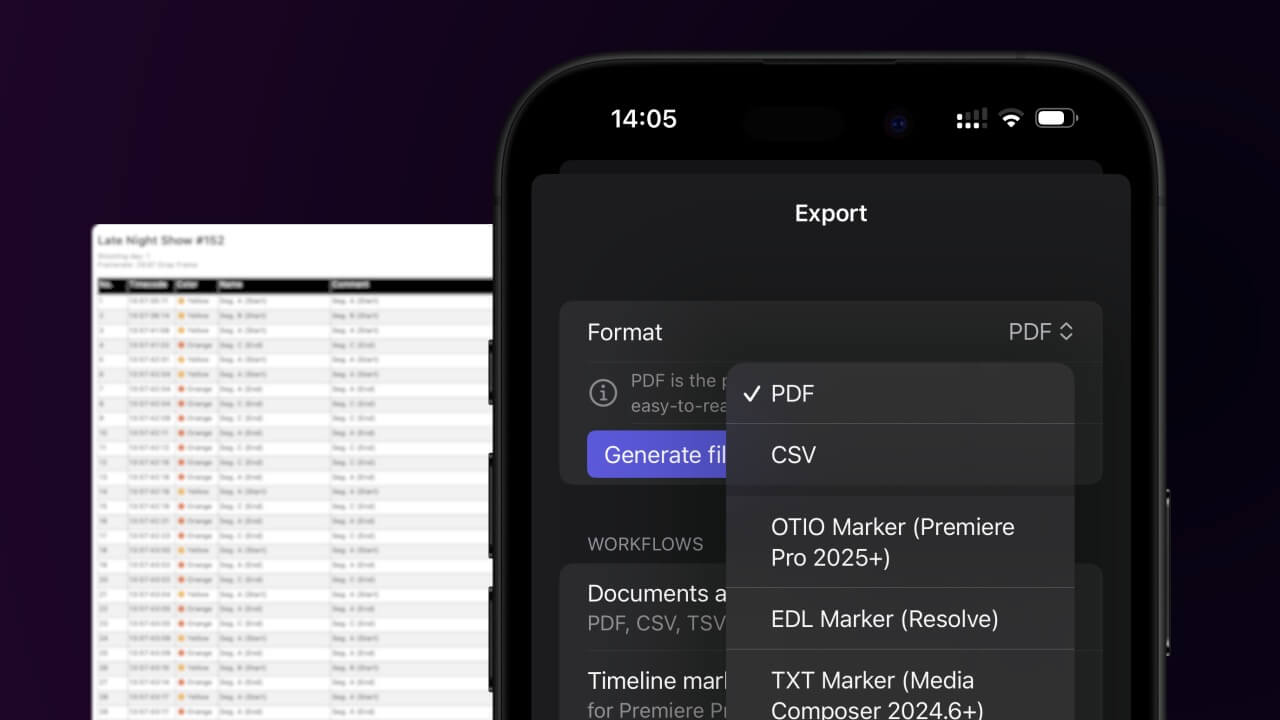
Open the project in the app, then select "Export Notes" from the top menu. Select "CSV". Generate and save the file.
2. Use the "Marķējuma pārveidotājs" to convert the CSV file into a XLS file
Open the free Marķējuma pārveidotājs, select "CSV" and set "convert" to "XLS". Generate and download the file. Ja jums ir problēmas ar faila konvertēšanu, varat sazināties ar bezmaksas atbalsta dienestu.
Ensure that the CSV file contains columns labelled "Timecode In", "Name" and "Comment". Otherwise, it will not work. You can also add columns for 'Colour' and 'Timecode Out'.
🚀 Gatavs
Pagaidām tas arī viss! Ja šī pamācība jums noderēja, lūdzu, dalieties ar to, lai mūs atbalstītu. Ja jums ir ieteikumi, kā mēs varētu uzlabot darbplūsmu, lūdzu, dariet mums zināmu!